|
|
|



Learning objective:
prepare bash files for batch job submission to HPC
submit multiple jobs to HPC
est. time 1 hour
1. Batch job submission
In order to run the CUWALID model, we use the High Performance Computers (HPC) provided by institutes. These HPC’s are better for running multiple jobs at the same time. This will save time and allow us to run models that use large data.
Here, we discuss on how you can submit multiple jobs to HPC. Please notice that this is not the only way to do the work but just to share one way of doing it.
1.1 creating directories to hold necessary files
The first step we need to do is create three important directories in our home directory. These are:
bSub_runME
bSub_logME
bSub_doneME
You can create these directories by runing the mkdir command in the terminal. Here is the command
mkdir bSub_runMEmkdir bSub_logMEmkdir bSub_doneME
Once you create these directories you can use them anytime for any job submission (i.e No need to make these directories everytime).
The bSub_runME directory is used to save our bash files (e.g myjob.bash) that contain all the necessary submission commands and the job to be run.
The bSub_logME directory is used to save error files and output files from the job we are running. If there isan error and the job is cancelled you can go tho this directory and read the error message in the jobid.error file. If there are any print statments in your job or any other print that would have been printed on the terminal will be saved in the jonid.out file.
The bSub_doneME directory is used to save our bash files (e.g myjob.bash) after the job is submitted. Hence, if there is an error and you have to run the job again you can easily move the bash files from this directory to the bSub_runME directory without creating them again.
1.2 Creating the bash files
In order to submit multiple jobs to HPC, we need to follow certain commands that are set by the institute. Hence, we can prepare a python script to write these bash files so that we save time to write each file mannually. The following python script write_bash_files.py is provided to prepare the bash files used in the job sumbission. Below, we will discuss how it works using one example function in the script.
[ ]:
# This script prepare the .bash file
# containing the arguments for downloading data
import numpy as np
def write_bsub(year):
    # file name to be saved in the bSub_runME directory
    run_file = 'bSub_runMe/imerg_download_' + str(year) + '.bash'
    # create empty array to hold the lines
    lines = []
    # this is internal command indicateing it ia a bash file
    lines.append('#!/bin/bash'+'\n')
    # job name
    lines.append('#SBATCH --job-name=i' + str(year) +'\n')
    # time required to run job
    lines.append('#SBATCH --time=0:15:00'+'\n')
    # number of nodes requested for the job
    lines.append('#SBATCH --nodes=1'+'\n')
    # number of task allocated for each node
    lines.append('#SBATCH --ntasks-per-node=1'+'\n')
    # RAM space requested for the job
    lines.append('#SBATCH --mem=20gb'+'\n')
    #  account name
    lines.append('#SBATCH --account=geog014522'+'\n')
    # this is internal command for SLURM
    lines.append('#cd $SLURM_SUBMIT_DIR'+'\n')
    # your home directory wher you run the job from
    lines.append('cd /user/home/fp20123/'+' '+'\n')
    # which ever python you want to use
    lines.append('module add lang/python/anaconda/3.7-2019.10'+' '+'\n')
    # this is if you using your own python environment
    lines.append('source /user/home/fp20123/my_uavproject/bin/activate'+' '+'\n')
    # the python script you want to run
    lines.append('python /user/home/fp20123/my_python_code.py ' + str(year) +'\n')
    # writing file
    f = open(run_file, 'w')
    for line in lines:
        f.write(line)
    #  close file
    f.close()
    return 'done'
The above function helps us write the bash files with the necessary commands for the HPC job submission. As you can see, most of the lines are common and similar required by the HPC, hence, we can use this function to write any bash file we need with little modification. An example of the bash file produced using this function is shown below.
|
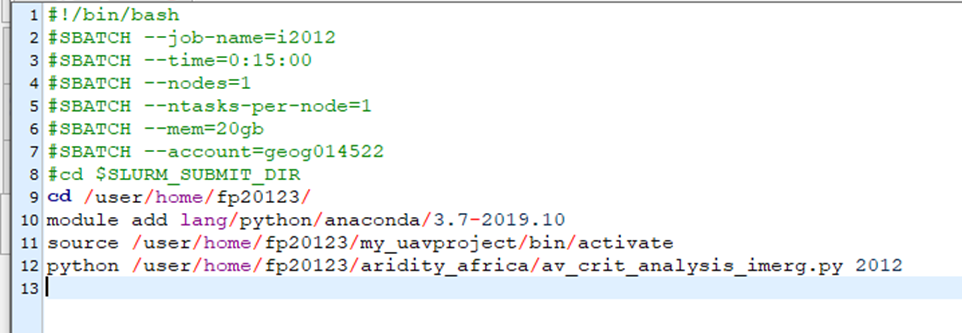
This will be what is written in the imerg_download_2012.bash according to the example.
If there are multiple jobs that use similar python scripts, then what you have to do is run above function to write the bash files with same suffix and a differetiating prefix so that we can submit it at the same time. In the above example we can see the file name is imerg_download_year.bash here the imerg_download is the prefix while the year is suffix. Now we can write any number of years we want to download (e.g imerg_download_2018.bash, imerg_download_2019.bash, …). Once we prepare these files, then we are ready to submit multiple jobs to the HPC.
1.3 Submitting multiple jobs
Once we prepare the bash files containing the jobs we want to run on HPC next is to use a little shell script to submit the jobs. The shell script is given as runBashFiles.sh. The file contains a few lines of code that allows to read all the bash files we prepare and sumbit it to the HPC. Here is an example file looks like
|
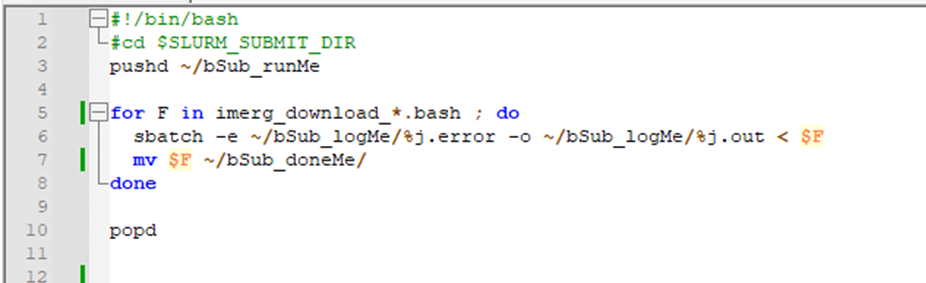
In the above image as you can see from line 5, all the files that start with imerg_download_ will be submited to the HPC and the files will be moved to the bSub_doneME directory we create earlier (Line 7).
Line 6 is where you see the .error and .out files that we discussed above to put any error message and output message from the job will be printed and svaed in the bSub_logME directory.
## EXERCISE Based on the above example please try to do the following |
1. Write a python script that calculates area of a circle with radius as an input argument. |
[ ]: